Your Home Assistant dashboard is lying to you. Not because the platform is lacking—it's incredibly powerful. It's lying through misdirection: showing you everything when you need to know almost nothing. You're drowning in entities, sensors, and graphs designed by developers who think in attributes, not by humans who just want to know: Is everything okay? Do I need to do anything?
I've built three dashboards now: one for personal use, one that monitors all of the servers and applications in my home lab, and one that monitors our entire home energy system. Through trial and error (lots of error), I've settled on a design philosophy that works: dashboards should answer one question in three seconds or less.
The Problem with Default Dashboards
When you first set up Home Assistant, you get the default Lovelace dashboard. It's comprehensive—every entity, every sensor, every switch. It's also useless for daily life.
The default view dumps 47 cards on you: temperature sensors for rooms you don't care about, binary sensors for doors you never check, and history graphs that require a degree in data interpretation to understand. It's a developer playground, not a command center.
I learned this the hard way. My first dashboard had 12 cards showing every temperature sensor in the house. You know how many times I checked the guest room temperature in six months? Zero. Not once.
The dashboard wasn't wrong. It was irrelevant.
Design Principles That Actually Work
After rebuilding my dashboard four times, I've settled on three rules that changed everything:
Rule One: The Three-Second Rule
Can you stand in the kitchen, glance at your phone, and answer "is everything normal?" in three seconds or less? If not, the dashboard has too much information. Critical status should be one card. Everything else should be hidden until you ask for it.
Rule Two: Hierarchy Over Completeness
Not all information is equally important. A battery at 20% matters. A humidity sensor at 42% doesn't. Your dashboard should prioritize based on actionability: What do you need to know right now versus what might be interesting eventually?
Rule Three: Context Beats Data
"Solar production: 7.2 kW" tells you nothing. "Solar production: 7.2 kW, which is 15% above expected for this time of day" tells you everything. Context transforms data into decisions.
My Setup: The Spartina Energy Dashboard
Our home energy system runs through Home Assistant in UTM on a Mac Mini M4: 100 kWh battery, 12 kW solar array, Tesla for transport, and integration with Coastal Electric's time-of-use rates. The dashboard I built for this is my most-used interface in the entire house.
The dashboard has four sections:
Section One: Current Status (the three-second check)
- Home battery SoC and current flow (charging, discharging, idle)
- Tesla charging status and estimated completion time
- Grid import/export (are we buying or selling?)
- Today's solar production versus consumption
Section Two: Today's Numbers
- Energy generated, consumed, and stored
- Cost basis for the day (what would this have cost on peak rates?)
- Battery health and cycle count
Section Three: Weather and Forecast
- Current conditions from our Tempest station
- Solar forecast for the next 24 hours
- Temperature trend (affects HVAC load)
Section Four: Quick Actions
- Toggle charging modes
- Set departure time for the Tesla
- Adjust thermostat without drilling into climate controls
Every section answers a specific question. None of them require drilling into sub-menus unless you want to.
Essential Components (And What to Skip)
Not all entities belong on your dashboard. Here's what I include:
Include These:
- Battery state of charge and power flow (if you have home battery)
- Vehicle charging status with estimated completion (if you have an EV)
- Climate current state and active mode
- Weather current conditions and short-term forecast
- Security armed status (if armed)
- Any door you actually use (front door, garage door)
Skip These:
- Individual room temperatures (unless you have zone-controlled HVAC)
- Humidity sensors (unless you're curing cheese)
- Historical graphs (put these on a separate "analysis" tab)
- Every light and switch (use voice or the entity browser for those)
Implementation: Making It Happen
The Home Assistant Lovelace UI has improved dramatically. You don't need YAML expertise anymore. Here's my approach:
Card Types I Use Most:
- Gauge Card: Perfect for battery percentage, tank levels, anything with a range
- Power Flow Card: Essential for energy systems—shows direction of power at a glance
- Weather Forecast Card: The built-in card handles most weather integrations
- Button Card: For quick actions without navigating menus
- Entity Card: For status checks on single items
Conditional Visibility Saves Everything
My dashboard shows different cards based on time of day. During daylight hours, solar production is front and center. At night, battery status takes priority. When I'm away, security and absence mode controls appear.
You set this up through the card's visibility conditions: time range, entity state, or user presence.
Mobile Design Matters More Than Desktop
I built the dashboard on my desktop and was proud of it. Then I tried using it on my phone while walking out the door. Everything was too small, too crowded, impossible to tap.
Now I design for mobile first. One column. Large tap targets. Critical information in the top 200 pixels. Desktop gets the expanded view.
Common Mistakes I Made (So You Don't Have To)
Mistake One: Overcrowding Cards
Early versions had 20 cards on the main view. I thought I was being thorough. I was being overwhelming. Now I limit the main view to 8 cards or fewer. Everything else lives on secondary tabs.
Mistake Two: Ignoring History
I tracked daily consumption but never looked at it. The graph sat there, pixel-perfect, utterly useless. Now I have a separate "Analysis" tab for historical views that I check weekly, not daily.
Mistake Three: No Navigation Structure
Every card was at the same level. The thermostat was next to the front door lock next to the solar panel. It made no logical sense. Now I group related items: Energy in one tab, Climate in another, Security in a third.
Quick-Start Dashboard Checklist
Use this when building or rebuilding your dashboard:
- One "everything okay?" status card (the three-second rule)
- Group cards by context (Energy, Climate, Security)
- Limit main view to 8 cards maximum
- Design for mobile first (large tap targets)
- Use conditional visibility (day/night modes)
- Add context, not just data
- Create a separate "Analysis" tab for historical data
The Result
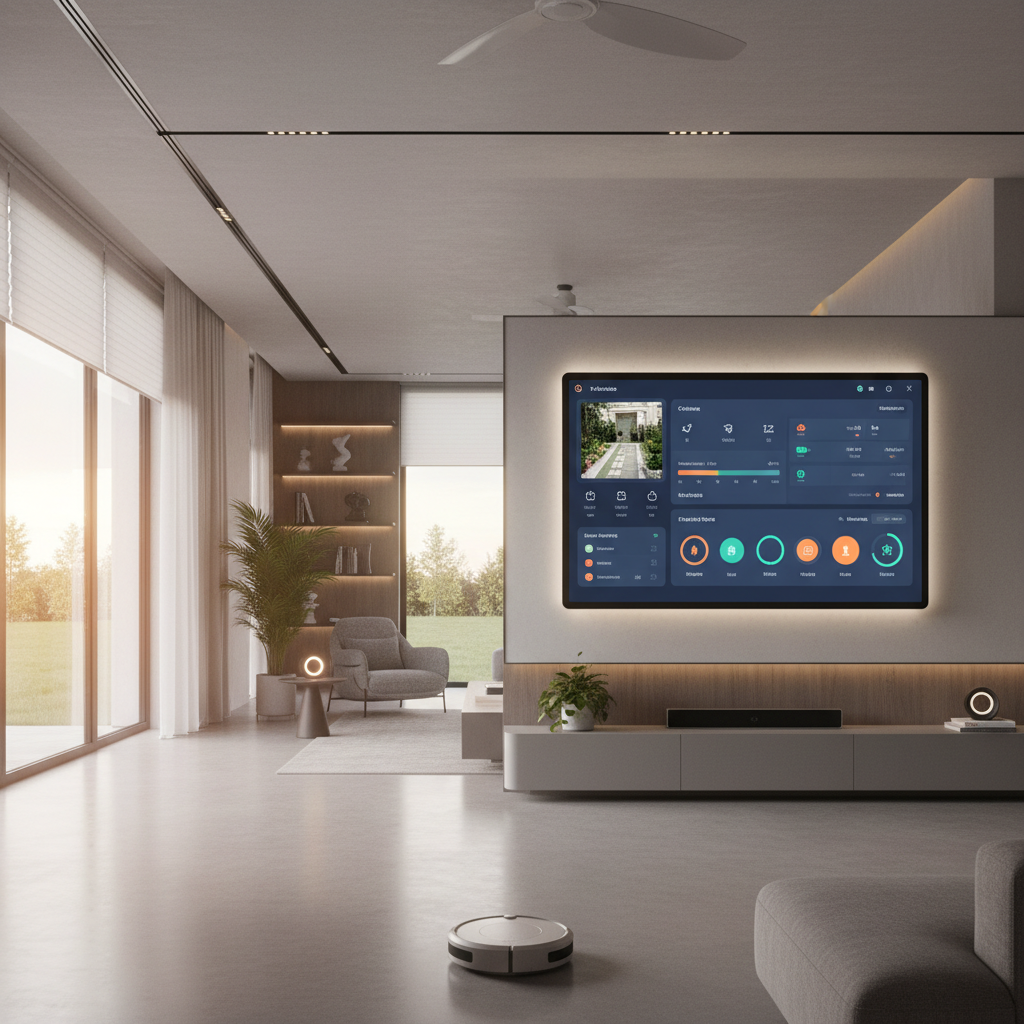
Our Spartina dashboard takes 1.7 seconds to answer "is everything okay?" in the morning. One glance at the power flow card tells me if we're charging, discharging, or grid-tied. The quick action buttons let me change modes without opening a single menu.
This is what a dashboard should be: not a data dump, but a command center. Not a developer tool, but a household interface.
Start simple. Add one card that answers one question. Expand from there. Your future self will thank you every morning when you check your phone and know—instantly—that everything is fine.